2018年3月15日星期四

Tech 1a vs Tech 2 scan tool

Topic: Tech 1a or Tech 2
The Tech 1 and Tech 1a were made by Vetronix. Tech 1a was a updated version. I would not mess with a Tech 1.
Many cartridges were available. ABS and airbag stuff.
The best Tech 1a cartridge was the dealership 'mass storage' one. It could be updated with software. The MSC covered all GM systems. Powertrain, abs, airbag etc..
About 1994. The VIM OBDII interface cable was released.
GM support for the Tech 1a went away about 1996. Vetronix went on making software cartridges until a few years ago.
Currently, the Tech 1a is a obsolete scanner. It can have some use if you obtain a 'Global OBDII cartridge'.
In 1996, GM introduced the Tech 2. Produced by Hewlett Packard. Interesting, it used Vetronix written software.
The original Tech 2 came with a 10mb picma card. Latter units came with a 32mb card. You want the 32mb card.
At some point, Vetronix bought out the Hewlett Packard production line. Genuine Tech 2 now made by Vetronix and lots of clones by China. A HQ Tech2 China knockoff should be a good option if you have not many budget on it. But kind of confused for customers coz there are many types. See the chart: (not mine, copied)
Item NO.PackageWeight(kg)32MB CardCANDITIS2000 USB KeyHot Selling
SP23Plastic Case5.1YesYesYES★★★★★
SP23-1Carton Box3.5YesYesyes★★★★★
SP23-BPlastic Case4.8YesYesyes★★★★★
SP23-B3Carton Box3.2YesYesyes★★★★★
SP23-CPlastic Case8.9YesYesyes★★★
SP23-DPlastic Case8.9YesYesyes★★★
SP23-D1Plastic Case8.9yesyesyesjust add 1*sp23-v vci module
Here, no comments on China knockoffs. Only a working one.
With the Tech 2. Gone were the cartridges. The pcima card could be updated electronically.
You can update a Tech 2 by removing the pcima card, install it into an a different updated Tech 2, and tranfer the update to the pcima card.
About 2002. The Tech 2 Candi module was released. Allowed Tech 2 CAN bus access to cars like the 2003 Saturn Ion and Cadillac CTS using CAN.
More..just over a year ago. Bosch bought out Vetronix. The current Tech 2 is a Bosch product. Future Tech 2's may be green corprate color.
That is, a Tech 1a can go back to 1981 GM cars. A Tech 2 can go back to 1990. A card is available for the Tech 2 to go back to 1981.
What can a Tech 2 do? Codes for all systems. It is also a bidiectional tool. Examples: It can turn on/off fuel injectors for testing, enable EGR valves, enable trans solenoids, etc. In other words, alot.
You can also set vehicle sytem configurations. In my case, I can enter the cluster display and change it. Mine currently shows '2001 Cadillac DTS' on start up. I can also turn on/off the right mirror tilt on back up.
Very, very nice tool to have if you work on GM vehicles.
Forget about 10mb pcima cards. Go with 32mb.
Easy software updates.
Go ahead and get the CANDI module.
Figure around $3000 with CANDI module.
That being said. The Tech 2 is a diagnostic tool. What scares us is the air bag black box forensic tool. The Vetronix / Bosch CDR. The Tech 2 cannot access the crash data. It can be seen here:
http://www.airbagcrash.com

How to use Tech II to set up tire pressure monitoring

This is helpful on 2001+ ZO6's to add the T82 Automatic Headlamp operation at night feature as well as adding the tire pressure monitoring function. Both of which are built into the ZO6's Body Control Module (BCM) and just need to be "turned on" in order to work. The Automatic headlamp function usually requires no parts to be purchased but the tire pressure monitoring system needs to have sensors installed on all 4 tires.
Step 1: Obtain a working TECH2 (original or HQ clone- both ok)

note: Tech 2 knockoff has many types and here is a chart for you to know all.
Item NO.PackageWeight(kg)32MB CardCANDITIS2000 USB KeyHot Selling
SP23Plastic Case5.1YesYesYES★★★★★
SP23-1Carton Box3.5YesYesyes★★★★★
SP23-BPlastic Case4.8YesYesyes★★★★★
SP23-B3Carton Box3.2YesYesyes★★★★★
SP23-CPlastic Case8.9YesYesyes★★★
SP23-DPlastic Case8.9YesYesyes★★★
SP23-D1Plastic Case8.9yesyesyesjust add 1*sp23-v vci module
All of GM Tech2 are same functions, they are just from different factory.
SP23,SP23-1 the same, just the package case is different, one is with plastic case, one not.
SP23-B,SP23-B3 the same factory, the packing is different, one is with plastic case, one not.Step2: Startup TECH2

Step 3:
Enter Diagnostics menu

Step4: Enter year of car

Step5: Enter Passenger Car menu

Step 6: Select Body from the menu

Step 7: Select Y body from menu

Step 7: Select Y body from menu

Step 9: Select transmission type

Step 15: Enter Remote function actuation menu

Step 16: Enter special functions menu

Step 17: Enter set options menu

Step 18: Enter tire pressure monitor menu

Step 19: Toggle function on and hit save options and power off TECH2

When you're finished go ahead and train your tire pressure sensors through the driver information center.
Done!

Diagnostic Scanner GM Tech 2 Setup Guide

This is detailed guide on how to setup CM TECH 2.
Requirement for GM Tech 2 Flash Setup:
1. The GM SPS application installed onto your PC (with the USB security key).
2. 32 MB PCMCIA card recommended.
3. SPS Kit Components:
• RS-232 DB9 Serial Port Adapter (P/N 3000111)
• RS-232 Communications Cable (P/N 3000110)
• USB Security Key (already installed during software installation)
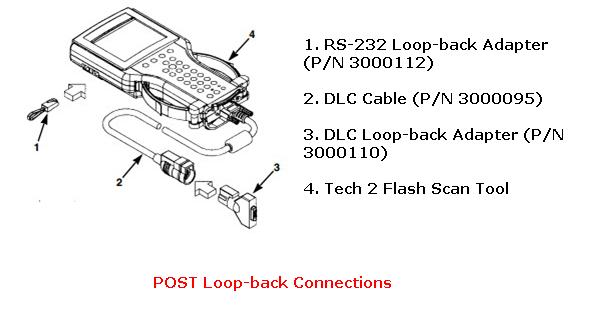
• RS-232 Loop-back Adapter (P/N 3000112)
• User’s Guide (P/N 526933)
4. Tech2 Kit Components (from Tech 2 Flash Kit):
• Tech 2 Flash Scan Tool
• Cigarette Lighter Power Cable (P/N 3000096) or Battery Power Cable (P/N 3000097)
• SAE 16/19 Pin Adapter (if the vehicle is OBD II compliant)
• NAO 12/19 Pin Adapter (if the vehicle is not OBD II compliant)
• (Optional) AC to DC Power Supply (P/N 3000113)
• DLC Cable (P/N 3000095)
• DLC Loop-back Adapter (P/N 3000110)
Step 1: Verify the Tech 2 and DLC Cable (Power On Self Test - POST)
gm tech ii setup
1. Make the loop-back connections as follows:
(a) Plug the RS-232 loop-back adapter (item 1) into the Tech 2 Flash RS-232 port. See Figure 2.1.
(b) Connect the DLC cable (item 2) to the Tech 2 Flash VCI connector.
(C) Connect the DLC loop-back adapter (item 3) to the DLC cable.
2. To make the power connection, connect one of the following to the power jack on the DLC cable (see Figure “POST Loop-back Connections”):
• battery power cable (item 1), or
• cigarette lighter power cable (item 2), or
• the optional AC to DC power supply
gm tech ii setup-2
3. Supply power to the Tech 2 Flash.
4. Perform the Power On Self Test (POST) as detailed in the Tech 2 Flash User’s Guide.
5. The POST automatically verifies the hardware and detects any Tech 2 Flash malfunctions. Do one of the following:
• If any errors are detected, refer to the POST Troubleshooting Chart located in the Tech 2 Flash User’s Guide.
• If no errors are detected, go to the next step.
6. Disconnect the RS-232 loop-back adapter, the power supply, and the DLC loop-back adapter.
7. Go to the steps in the next section, “Step 2: Connect the Tech 2 Flash Scan Tool to the PC and to the Vehicle DLC”.
Step 2: Connect the Tech 2 Flash Scan Tool to the PC and to the Vehicle DLC To connect the scan tool to the PC and the vehicle
gm tech ii setup-3
Note: USB security key installed during software installation is not shown. (Can be in USB port on front or back of computer.)
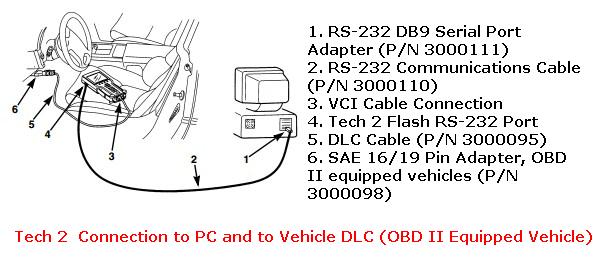
1. Connect the RS-232 DB9 serial port adapter
(Item 1) to the open COM port on your PC that you selected when you installed the SPS application.
2. Connect the RS-232 communications cable (Item 2) to the DB9 serial port adapter (Item 1) and to the Tech 2 RS-232 port (Item 4).
3. If the vehicle is OBD II equipped (Figure “Tech 2 Connection to PC and to Vehicle DLC (OBD II Equipped Vehicle)”), connect the SAE 16/19 pin adapter (Item 6) to the DLC cable (Item 5). (If the vehicle is non-OBD II equipped, skip this step.)
gm tech ii setup-4
Note: USB security key installed during software installation is not shown. (Can be in USB port on front or back of computer.)
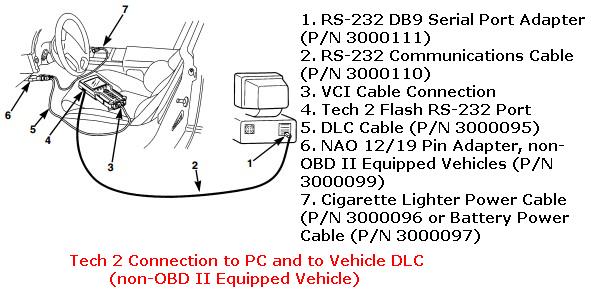
4. If the vehicle is non-OBD II equipped (Figure “Tech 2 Connection to PC and to Vehicle DLC (non-OBD II Equipped Vehicle)”), make the following connections. (If the vehicle is OBD II equipped, skip this step.)
(a) Connect the NAO 12/19 pin adapter (Item 6) to the DLC cable (Item 5).
(b) Connect a power supply (Item 7) to the DLC cable (Item 5).
(c) Connect the power supply to the appropriate power source (cigarette lighter, battery, or outlet). 5 Connect the DLC cable (Item 5) to the Tech 2 VCI cable connection (Item 3).

VXDIAG VCX Nano GM working or not

I am using patched Tech2Win, as provided on CDROM purchased with device and VXDIAG VCX Nano GM off ebay and have not been able to communicate with any modules in a 2001 Holden Vectra JS, same as Opel/Vauxhall Vectra B, with a C22SEL engine. The ECU is identified as a Simtec 56.5.
I know that the ECU and Central Door Lock Modules and Immobiliser in the vehicle are not faulty because I can successfully communicate with them using Op Com v1.45 China Clone. I can read DTCs from the ECU module and I can perform Central Door Lock function tests and read the PIDs for the Central Door Lock Module and I have successfully programmed key to immobiliser.
I also have done a successful scan of ECU and Central Door Lock and immobiliser Modules using Autel MaxiDAS DS708.
I have installed the patched Tech2Win as provided on the installation disc with the VCX Nano GM device and it shows 42 days unlocked. It is installed on a Dell Inspiron 8600 Laptop, Intel Pentium M processor 2.00GHz, 2Gig of RAM, runninng Windows XP version 2002 Service Pack 3.
I am using Holden v157 and Opel v180 bins gratefully obtained from this forum with Tech2Win to communicate with the vehicle. The Tech2Win software appears to be communicating with the VCX Nano device, indicated by the green bidirectional arrows in the lower left corner of the Tech2Win app window.
When scanning the ECU Tech2Win indicates Identification Running … with green arrows in lower left of app window, then it would change to Loss of Communications with Vehicle… Then it will change to Unkown ECU. Then it would show the Abort and ID Data select keys at lower part of App Window. If I select the ID Data button, Tech2Win App will display the 5 ID Paramaters, usually with an asterix for all ids, only one time I was able to see the correct ID parameters, even though it said Unknown ECU. If I select MDI Bosch API at the interface select window instead of MDI2 Bosch API, No Communication Message is displayed on the Tech2Win app window.
I also tried to scan the Body Module – Central Door Lock, it would show waiting for data and never establish comms with module. With green bidirectional arrows displayed on the Tech2Win app in lower left corner.
I was using firmware version 1.2.2.1 and I updated the firmware to the latest version 1.2.3.11 from the VX Manager update window, did not help. I noticed in the firmware updates descriptions in some previous firmware updates are related to Opel KW82 protocol. Opel uses KW82 protocol on pin 3 for Body System Modules such as Central Door Locking and Immobiliser and uses KW2000 protocol on pin 7 for the ECU. I know this because Op Com Device shows this when it successfully connects to those modules.
I have not tried scanning any vehicles using GDS2 also provided on the CDROM with VCX Nano GM as I have not had access to any vehicles later than 2006.
Update: I saw this: http://blog.obd2diy.fr/2017/08/09/vxdiag-vcx-nano-gm-good-or-not/
decided to have another new one from obd2diy.fr
Update: Test on a 2009 GMC Savannah full size van:
So I just tested the VXDIAG VCX NANO GM interface and Tech2win on a 2009 GMC Savannah full size van. I was able to connect, read engine data, read other modules data ( BCM ETC) with no issues. Not sure if this vehicle uses the same low speed CAN in any way. But at least I know the interface and tech2win are working together.
I have screenshots if anybody is interested.
Test on 2008 Vauxhall Vivaro 2.0:
Have Vcx Nano GM with Tech2Win for speed limiter removal on a 2008 Vauxhall Vivaro 2.0 (90bhp m9r 782): success!
  
Test on a Buick 2008 GL8 Firstland:
Buick 2008 GL8 Firstland engine: (C) 3.0L V6 LZC
Worked perfect. Both OK in ECM & TCM programming! Online!
So far, satisfied with the second one from obd2diy.fr.
 Relate Product:  

How to install TIS2000 for GM Tech2 scanner

What the function of TIS2000 software CD?
GM Tech 2 is a standalone scan tool mainly used for diagnostic function, but with the additional TIS2000 software dongle, it is possible to carry out ECU programming for GM vehicle models (after 2007).
Operating system:
A laptop with COM port running Windows XP operating system
NOTE: PCs validated to function with all Tech line applications including TIS Service Programming System (SPS). Other laptops may not support SPS or communicate properly with the Tech 2 and will not be supported for hardware communication issues.
11932316-tis2000-2001-01
Step-by-step TIS2000 software dongle installation:
1) Insert TIS2000 software CD into the laptop
2) Install the setup driver in the CD
3) Select Activator. Select first one Activator hardware key
4) Load DATA DVD (tis2000+data+0802) to run TIS200 on desktop after compete install the setup. TIS2000 will update the data automatically.
5) Find out and locate SuperPro.dll file in TIS2000 crackfile folder after update data and copy the SuperPro.dll file to “C:Program filescosidsbin”
6) Then run TSI2000 software
7) Connect GM Tech2 device with computer
8) Start ECU programming and follow the windows prompts.
If you order GM Tech2 scanner with Saab software, you’d better choose Saab TIS2000 CD with USB key.

what is the difference between gm tech2 in our website www.chinacardiags.com

A great many customers ask us what is the difference about the item sp23 and sp23-1 gm tech2 in our website.
in fact, they are easier to clarify the difference,  they have only one difference. it is the packing.
sp23 gm tech2  is packed with case. easy to save all the parts with the unit.
sp23-1 gm tech2 is packed with carton, so the shipping freight is less.
all the functions are the same.
now you can choose which one you like.
tech2-diagnostic-scanner-for-gm-saab-opel-suzuki-isuzu-holden-1

GM scan tool: MDI or Tech 2? original or clone?

Looking for a GM MDI interface or Tech 2 scanner and don’t know which one (original or clone) should you take?
Here you go.
Part 1: GM MDI or Tech 2
Part 2: Tech 2 original or clone?
- How to find the original or fake.
- worth to have a Tech 2 China clone?
Part 3: GM MDI genuine or fake?
- what’s the difference of MDI genuine & clone?
- GM MDI china clone any good?
Part 1: GM MDI or Tech 2
Tech 2 scan tool has become obsolete for shop use as of late. It still has a lot of capability and will do anything you need for the older platforms but it needs the CANdi module to work with any of the new stuff. The MDI is a 1 shot deal for all the newer PCMs and will still work on the older stuff too. I sold my Tech 2 and bought an MDI last year, haven't missed the Tech 2 since. Then again I've got a Genysis scanner I use for all my typical diagnostics & probing.
However, the MDI requires a GM log-in with monthly access to GM's website. That's it's only draw back for the enthusiast who wants a GM caliber scanner. The Tech 2 can be updated within itself and doesn't require the internet, the MDI does.
If you're running a shop, get an MDI. For the garage warrior or enthusiast, get a Tech 2. Just don't fall for these $350 pieces of garbage.
You can say that, Tech2win is a pain the the butt. It never updates security correctly for the 30 day window and that using GM computers and login info. The tech 2 is great for code reading, viewing data. The MDI is pretty much only used for programming but its needs on certain 10+ platforms and all 15+ to view data through GDS. All MDI functions require a GM subscription.
Part 2: Tech 2 original or clone?
First, How to find the original or fake.
It is very simple. The first thing I look, it's the memory card slot, open it up and look at the cover, if you see the stamp of the body exactly original. Next, the original at all wires and Candy use aluminum. As different numbers on the back cover, the photo you will see the difference. Sometimes it comes and all labels need to glue yourself.


Second, worth to have a Tech 2 China clone?
In short, that is a nice piece of equipment to have, very nice!
Aside from working beautifully with OBD2, the tech2 is the scanner for GM OBD1 to use. with the right software (plug in chips like nintendo cartridges) it’ll do some daewoo/suzuki, GM medium duty (meaning bigger than 3500 using non automotive OBD2 standards), and other in the GMdistant family tree too.
In addition to generic codes (P0000-P0999) It’ll do all the proprietary GM codes (P1xxx), actuators, and systems. you can also view fuel trims, emissions readyness (beyond a green LED for all OK) and It’ll talk to ALL the modules rather than just the ECM (and if you get into the $250+scanners, ABS) like BCM, SIR, entertainment, EVERYTHING on a GM. At school I used one with a 91+ cartridge on my 87 S10, so going back further is hit or miss but posible.
To adjust shift points and fuel consumptiona and Speedo, forget it.
The TECH2 can’t do any sort of modding/tuning, only upload GM flashes. At least with legitimate software. I’m sure someone has custom software to do it but there are easier ways nowadays.
Is it worth if you just want to read/clear codes on your own car once in a while, heck no. If you’re doing a lot of work on GMs or want to get a lot more in depth with your car, it’s worth the money.

No comment on China knockoff quality, I mean a working tech2, Chinese made or not.
Tech 2 scan tools are verified working:
Item NO.PackageWeight(kg)32MB CardCANDITIS2000 USB KeyHot Selling
SP23Plastic Case5.1YesYesYES★★★★★
SP23-1Carton Box3.5YesYesyes★★★★★
SP23-BPlastic Case4.8YesYesyes★★★★★
SP23-B3Carton Box3.2YesYesyes★★★★★
SP23-CPlastic Case8.9YesYesyes★★★
SP23-DPlastic Case8.9YesYesyes★★★
SP23-D1Plastic Case8.9yesyesyesjust add 1*sp23-v vci module
All of GM Tech2 are same functions,they are just from different factory.
SP23,SP23-1 the same,just the package case is different,one is with plastic case,one not.
SP23-B,SP23-B3 the same factory,the packing is different,one is with plastic case,one not.
Reviews talk a lot. Use with relief.


Part 3: GM MDI genuine or fake?
First, what’s the difference?

This is a chart of GM Multiple diagnostic interface comparison: GM MDI 1 vs. GM MDI 2 kit.
ProductGM MDI GM MDI 2 
Photo

Price$200 or so   (HQ clone)$1200 or so   (genuine)
WiFiYes
Gm mdi clones have USB & WIFI versions
Yes
Running speedFastFaster
UpdateYESYES
Operation systemWindows 7 64bitUnknown
SoftwareGlobal TIS
GDS2
Tech 2 Win
Global TIS
GDS2
Tech 2 Win
OBDII DiagnosticsYesYes
ECU ProgrammingYesYes
Key ProgrammingYesYes
Pass-Thru ProgrammingYesYes
VehicleVauxhall Opel, Buick, Chevrolet
1996-2017
Vauxhall Opel, Buick, Chevrolet
1996-2017-future
Therefore, it’s easy to find that the GM MDI 2 multiple diagnostic interface only improves in hardware design and running speed.

But the price ($12000) of MDI 2 is 4 or 6 times as MDI 1 ($150-$300).
So, no matter it’s used for DIY fun or professional repair work, a GM MDI clone of high quality is definitely no issues. Note that there are different versions of GM MDI china clone; and the quality may vary coz they are produced in different factory, especially PCB design. And it would result in various prices. But you will get what you pay for.
Second, GM MDI china clone any good?
GM MDI China clone Working well. Tested with GDS2 v.12.
Device works with GDS2 (Opel).
Device works with Tech2Win. (Opel, Hammer)
Device not works with SAAB via Tech2Win.
Price: USD259 + shipping cost(based on your country)
Pay via Paypal
Upload photos

The MDI came ready to use with the software installed. It worked since I already had Tech2Win, GDS2 and GM MDI Manager installed on my laptop. It works extremely well and I have no problems with it. The product image at the time I order showed the cable keeper, A/C 12 volt adapter and multiple diagnostic interface user’s guide CD which is used to install the MDI manager software on your laptop. These items were not included. It also said it was Wifi but did not come with a wireless card but with a wireless interface instead. There are two versions of GM MDI interface on China market, cheaper MDI less than US$180 with only USB connection and the other more expensive with wifi wireless connection.
The product would work excellent if you had the MDI manager software already on your laptop.


My device tested with many cars for 4 months.
Device works with GDS2 (Opel).
Device works with Tech2Win. (Opel, Hammer)
Device not works with SAAB via Tech2Win.
Tested by my own, works with Saab 9-5, 2003, 3.0
It works with tis2000 and tech2win NAO.
My MDI clone works fine with tech2win and also TIS2000 software. Used it for diags and pcm flashing with no problem (through usb port only, cause wifi is unstable for programming functions).
Added a wireless card to that one too, same flawless performance.. Only issue for me is that they all have the same serial number.. So using 2 of them in the same shop with wireless would be impossible..
compared boards from a genuine to this clone, almost identical.. multiple layer pcbs, same tracers, didn’t see any difference except the board labeling was missing on the clone.
Wifi GM  mdi good, interface works online. update mdi 100%. offline not that good  for new cars.
Nissan Consult III Plus Ver.46.30 works on MDI interface as well (this is not tested by me, your are on your risk).